
Monitor visual website changes with screenshots
Configure a screenshot monitor, compare two captures, and understand how dynamic pages and monthly credits affect visual website monitoring.
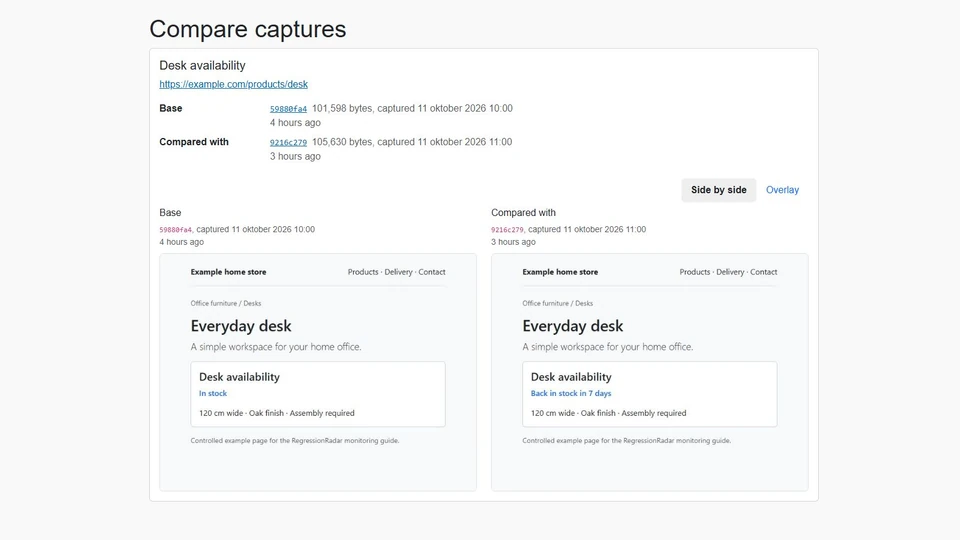
When layout, styling, or browser-rendered content matters, a screenshot monitor gives you a visual record to investigate. RegressionRadar uses Chromium to capture the full page and keeps scheduled measurement results in the monitor's history.
This guide uses a controlled example product page whose availability message changes from In stock to Back in stock in 7 days. Screenshots show the application's actual monitor form and comparison component with sample data. They demonstrate the workflow rather than a customer's monitoring history.
1. Choose a stable page
Start with a page whose appearance is reasonably consistent between checks. Rotating banners, clocks, animations, and changing content can make captures differ even when the page is working as intended.
Screenshot detection compares the captured image bytes exactly. It has no configurable visual tolerance or ignored regions. A detected difference is a prompt to investigate; it does not by itself establish that the page has a defect.
For a specific message that is present in the downloaded HTML, an HTTP monitor with a CSS selector can provide a more focused signal at a lower credit cost.
2. Add a screenshot monitor
Open Add web monitor after signing in:
- Name the monitor so that its purpose is clear.
- Enter the full page URL in Uri.
- Choose Screenshot as the probe method.
- Set the interval and timeout, enable measurements, and save.
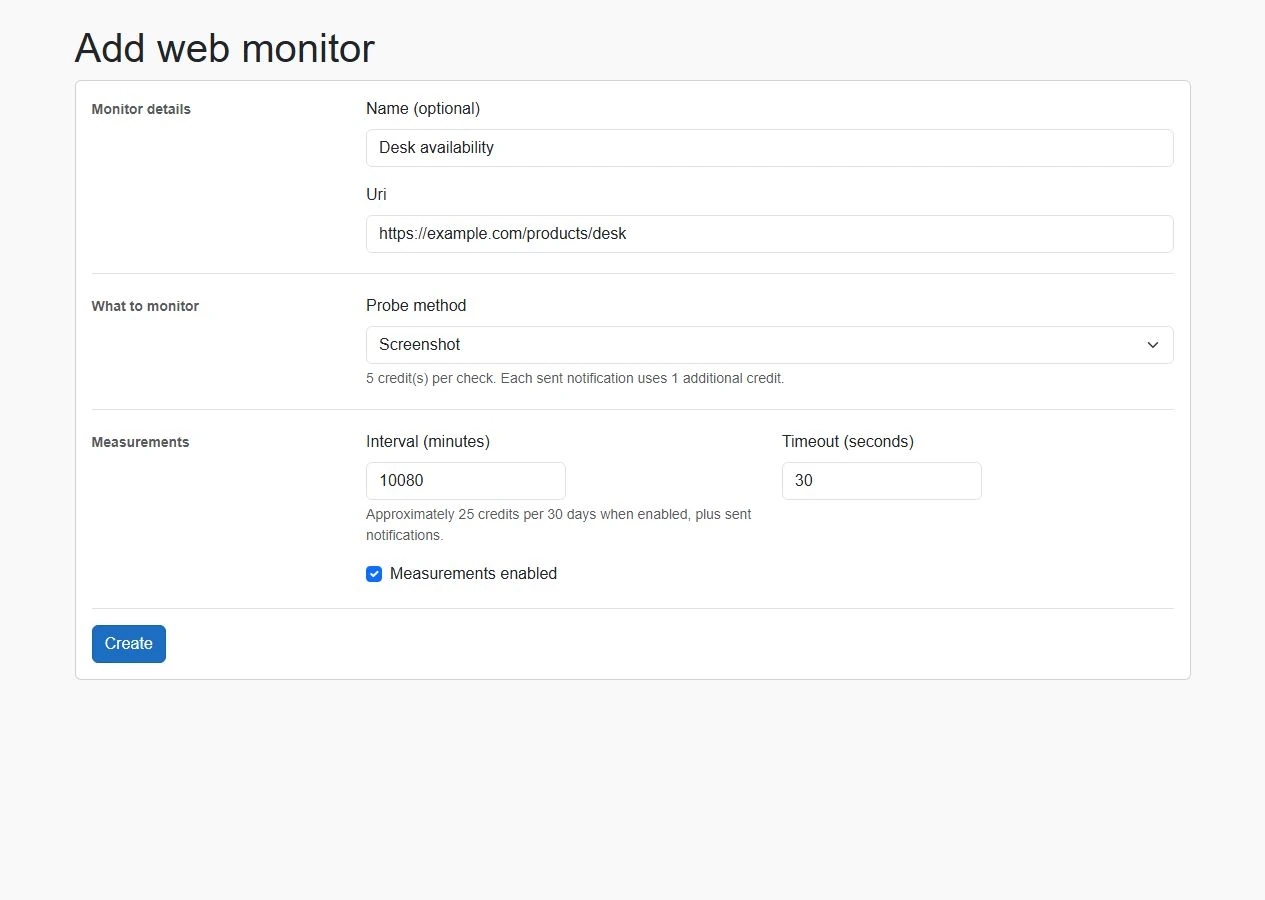
Sample configuration in the application form. Screenshot monitors capture the full page and do not offer the HTML selector field.
The example uses 10,080 minutes, or one week, between checks. A screenshot check consumes five credits, including failures. Five checks use 25 credits before any notification deliveries. More frequent checks consume more credits, and the allowance is shared with your other monitors.
Choose the interval according to how quickly you need to discover a change. Review the plans and usage examples to estimate the allowance you need. Checks run on a schedule; the application shows each monitor's last and next check.
3. Let the first check establish a baseline
The first-ever streak establishes the initial status and content hash. It does not send a change notification. Subsequent measurements continue that streak while both HTTP status and content hash match; changing either starts a new streak.
Configure email or Microsoft Teams rules if you want alerts for later streak changes. Each successfully sent notification consumes one shared credit. Failed or skipped notifications consume none.
4. Compare the available screenshots
Once there are two available stored captures, open a content comparison from the monitor's history. Side by side places the base screenshot next to the compared screenshot. Use it to inspect content and layout changes in context.
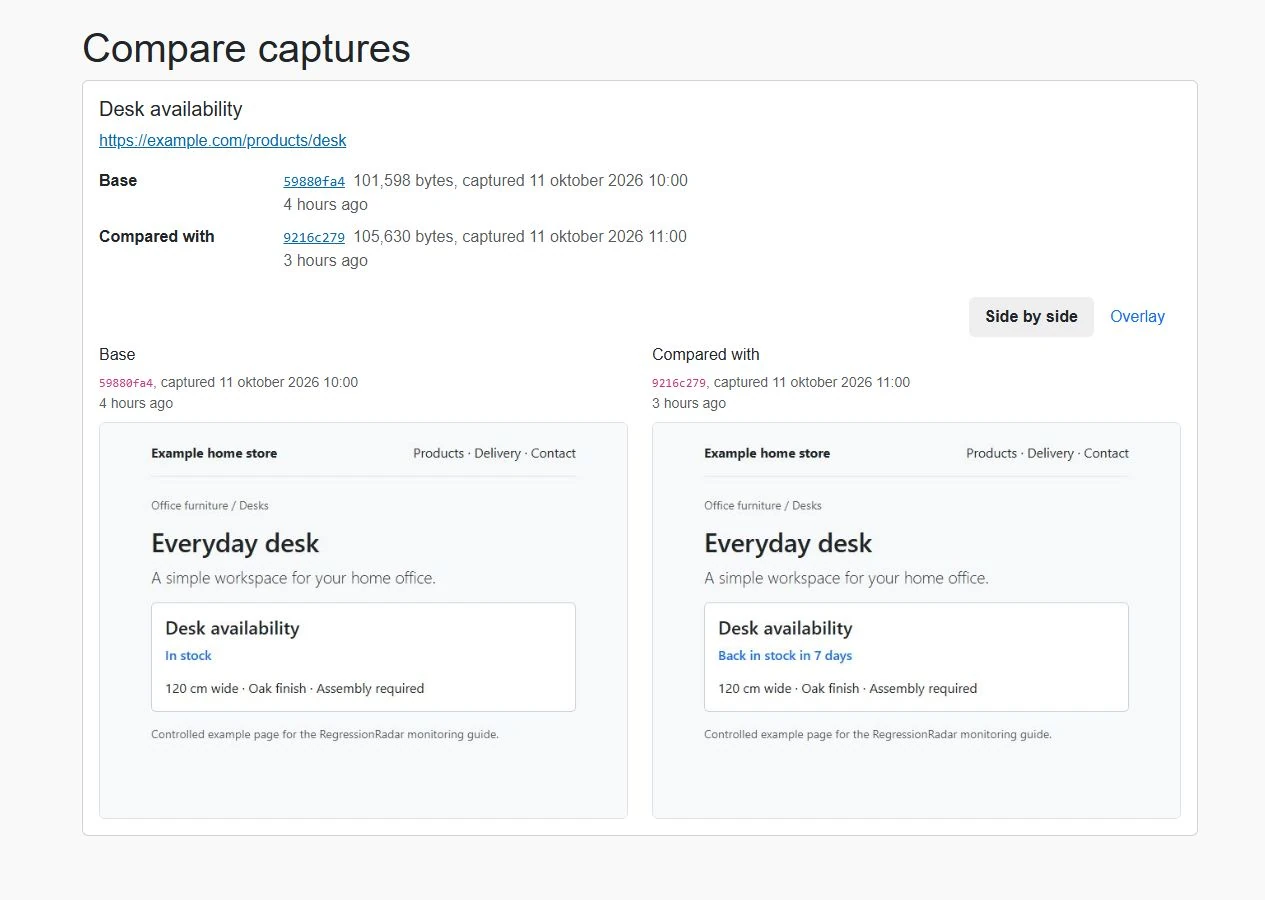
The actual comparison component, using browser captures of a controlled example page. The changed availability message is visible in the right-hand capture.
The comparison also offers Overlay, with a transparency control and an option to swap the images. These are viewing tools for investigation; they do not change how a screenshot difference is detected.
Historical captures may be unavailable if their content exceeds the configured storage limit. The measurement can still retain its hash and result, but an image comparison requires both captures.
5. Decide whether the change needs action
Use the visible difference and recorded HTTP status to understand the event. An expected stock update or planned layout change may require no intervention. A missing control, broken layout, or unexpected response may warrant investigation.
For frequent unexpected changes, inspect the page for dynamic content. If the information you need is stable HTML, consider switching to a focused HTTP-content monitor. For screenshot monitoring, choose a stable target and a schedule that suits your monthly allowance.
Read how website monitoring works, check the FAQ, or start monitoring for free.