
Monitor part of a webpage with a CSS selector
Follow a worked example to monitor an availability message, avoid unrelated HTML changes, and review the resulting text diff in RegressionRadar.
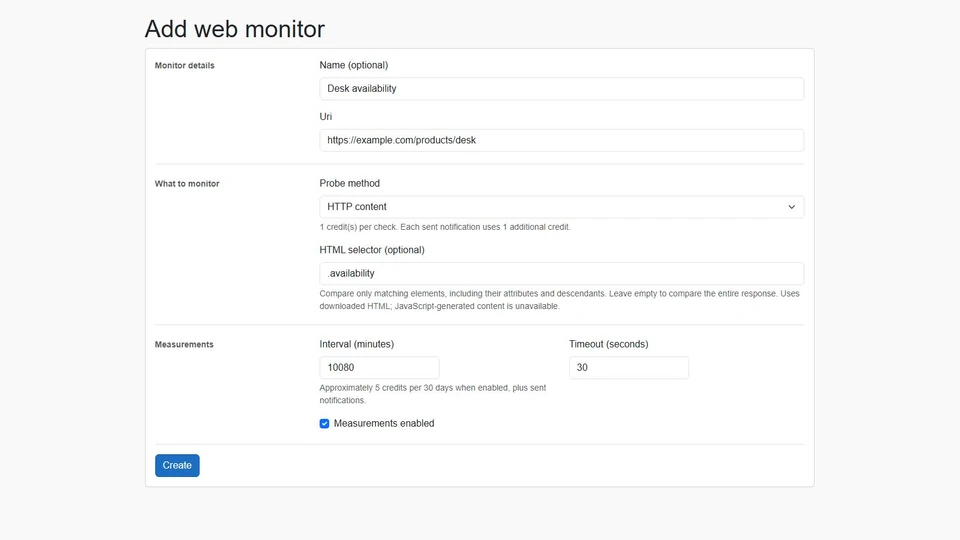
A product page can change without its availability changing. Navigation, promotional banners, and other surrounding HTML can all trigger a content change. An HTTP-content monitor with a CSS selector lets you focus on the HTML element you care about.
This guide follows an availability message that changes from In stock to Back in stock in 7 days. The screenshots show RegressionRadar's actual monitor form and comparison component rendered with sample data. Replace the example URL with a page you want to monitor.
1. Find the message in the downloaded HTML
For this example, the page contains:
<p class="availability">In stock</p>
The selector .availability matches that element. An element with id="availability" would instead use #availability. Choose a selector that isolates a stable part of the page. A broad selector such as body includes much more HTML and can make unrelated updates look like relevant changes.
Inspect the page's source HTML to confirm that the element exists in the downloaded response. HTTP selection uses HTML without executing JavaScript. If a message appears only after a script runs in the browser, consider screenshot monitoring.
2. Configure the HTTP monitor
Create a free account, then open Add web monitor. Signup already creates an initial HTTP monitor for the website you entered; you can edit that monitor instead of adding another one.
- Enter a descriptive name, such as Desk availability.
- Enter the full HTTP or HTTPS page URL in Uri.
- Choose HTTP content as the probe method.
- Enter
.availabilityin HTML selector (optional). - Choose the interval and timeout, enable measurements, and save.
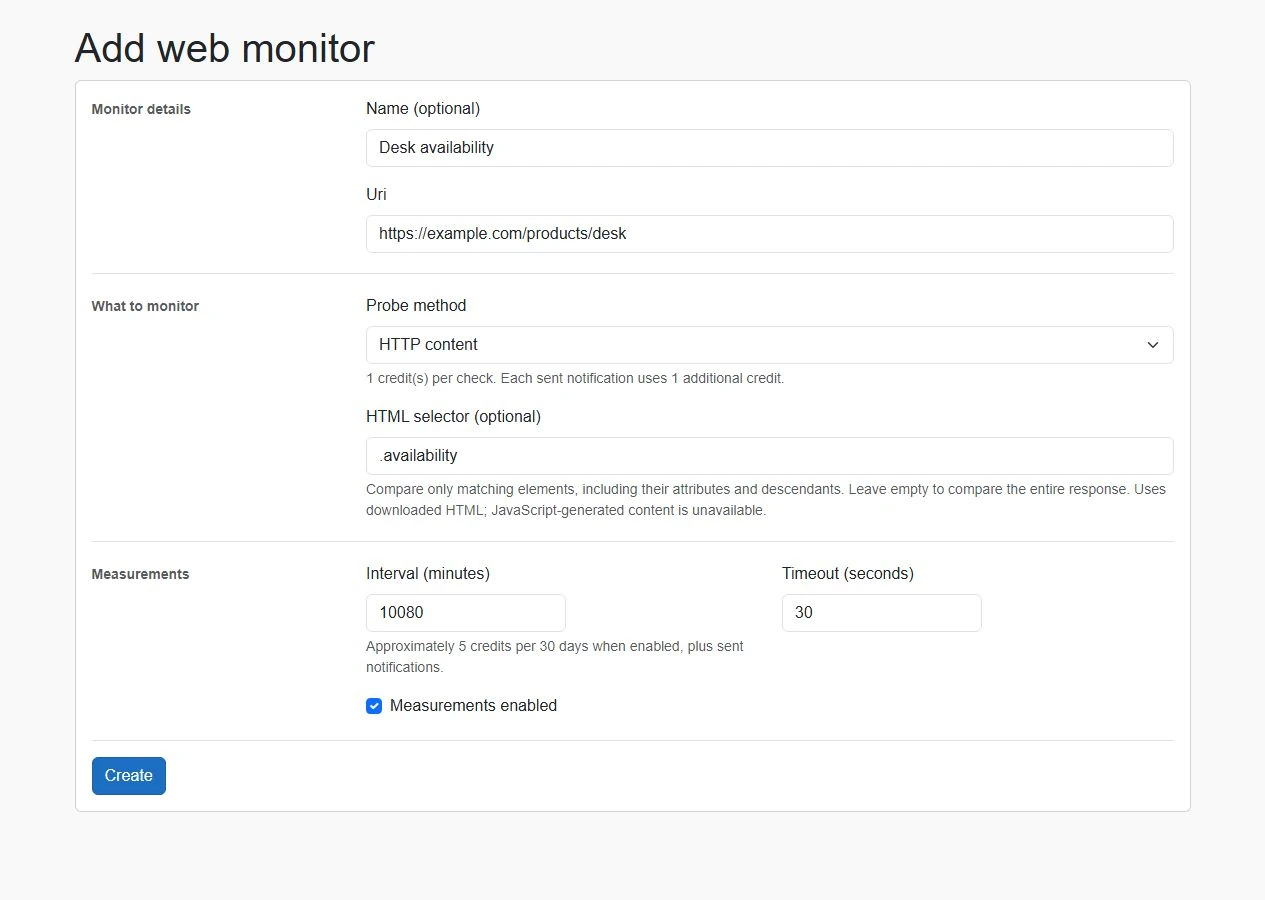
Sample configuration in the application form. The example uses a weekly interval of 10,080 minutes. Choose a shorter interval when the value of an earlier alert justifies the additional credits.
An HTTP check uses one credit, including failed checks. Each successfully sent notification uses one additional credit. These costs share the monthly allowance across all your monitors. Compare plans and credit allowances before choosing a frequent schedule.
3. Understand what is compared
RegressionRadar captures the matched elements' outer HTML, including their attributes and descendants, in document order. If several elements match, all their selected HTML contributes to the hash. Changes to attributes or nested markup can therefore count even when the visible wording stays the same.
Leave the selector blank to compare the original response. A nonblank selector requires an HTML response and a valid selection; a selector failure produces a failed measurement. Downloaded responses and selected HTML are subject to configured size limits.
A streak continues when both the HTTP status and content hash match. A change to either begins a new streak. Selection helps reduce irrelevant content changes, but HTTP status changes still matter.
4. Review the recorded difference
After the page changes and another scheduled check runs, open the monitor's history and compare available stored content. In the example, the text comparison identifies the old availability message as removed and the new message as added:
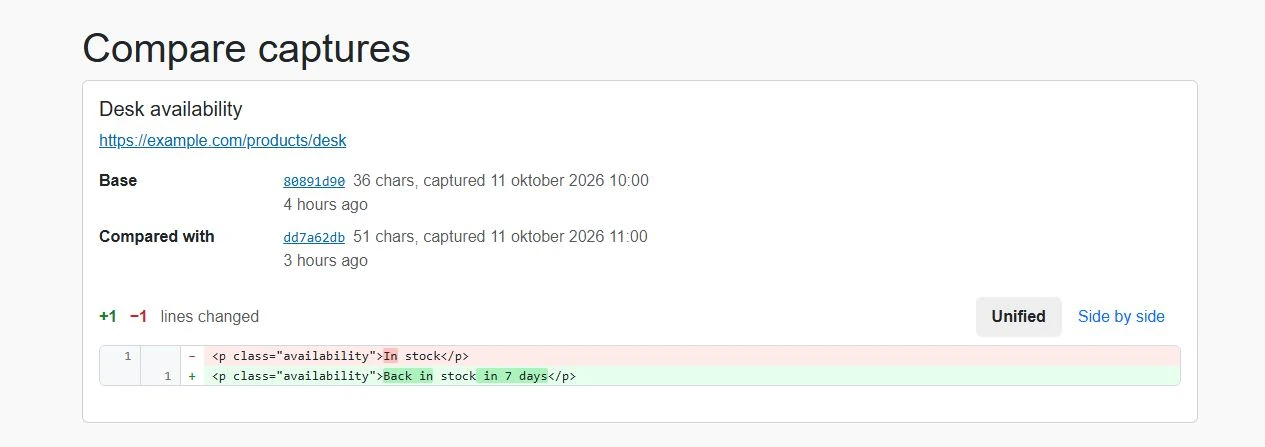
The comparison component is shown with two sample HTML captures. Text differences require both historical captures to be available; a measurement may retain a hash without storing oversized content.
Add email or Microsoft Teams notification rules to the monitor if you want to hear about later streak changes. The first-ever streak sets the baseline and does not send a change notification.
Troubleshoot unexpected changes
- Too many changes: check whether the selected element contains timestamps, rotating messages, or changing attributes. Narrow the selector to the stable information you need.
- Failed checks after adding a selector: verify the page returns HTML, the selector is valid, and the desired element is present in the downloaded response. A site redesign can change the markup your selector depends on.
- The content appears in the browser but not the source: it may be generated by JavaScript. Use a rendered screenshot check when appearance is the information you need.
- A new streak after editing the selector: history remains attached to the monitor, and the next check follows the normal status-and-hash rules. Comparing different selections can legitimately produce a new streak.
Download the HTTP monitoring checklist, read the monitoring FAQ, or create your free account.